Skip to content
macOS 14+ · Apple silicon 및 Intel

FindDiskKiller

See what keeps using your disk.

FindDiskKiller는 앱 디스크 I/O, AI Agent 저장 공간, 파일 활동 및 드라이브 상태를 하나의 macOS 작업 공간에 모으고, 더 이상 필요하지 않은 Codex와 Claude 대화를 안전하게 검토합니다.

App Activity: CPU, disk read/write, network download/upload — per process, sortable columns, adjustable widths. Four dimensions at once.

100%

Local Processing

0

Data Uploaded

macOS 14+

Supported

10

Languages

Everything in one workspace

앱 활동, AI Agent 저장 공간, 파일, 장치 및 상태를 하나의 작업 공간에서 확인합니다.

AI Agent 저장 공간

명시적인 작업으로 Codex와 Claude 저장 공간을 로컬 분석하고 사용량을 thread/session별로 귀속한 뒤, 지원되는 공식 provider 기능으로 오래된 대화를 영구 삭제하기 전에 검토합니다.
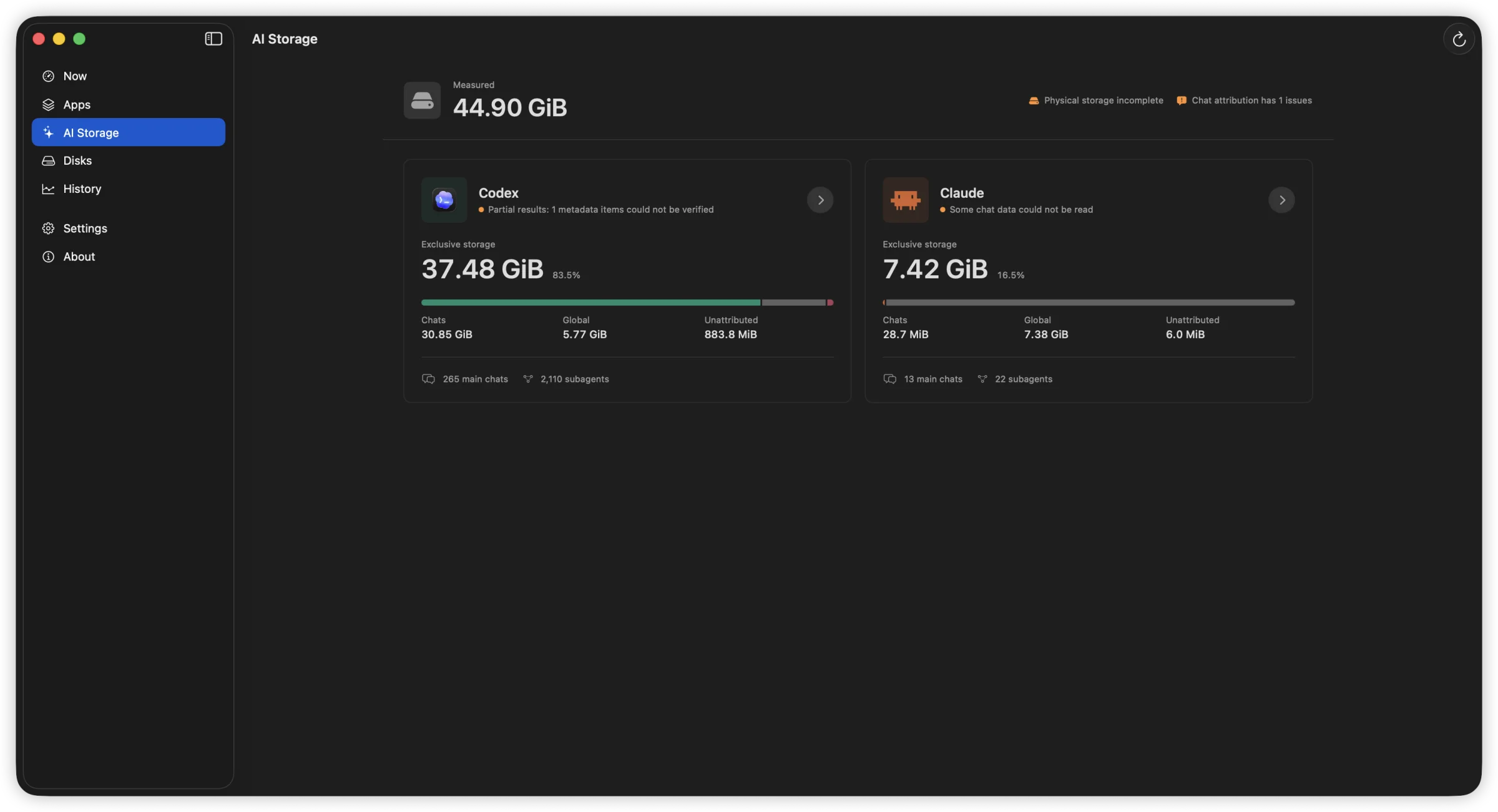
Codex와 Claude의 대화, 전역 및 미귀속 공간을 구분한 AI Storage 개요.
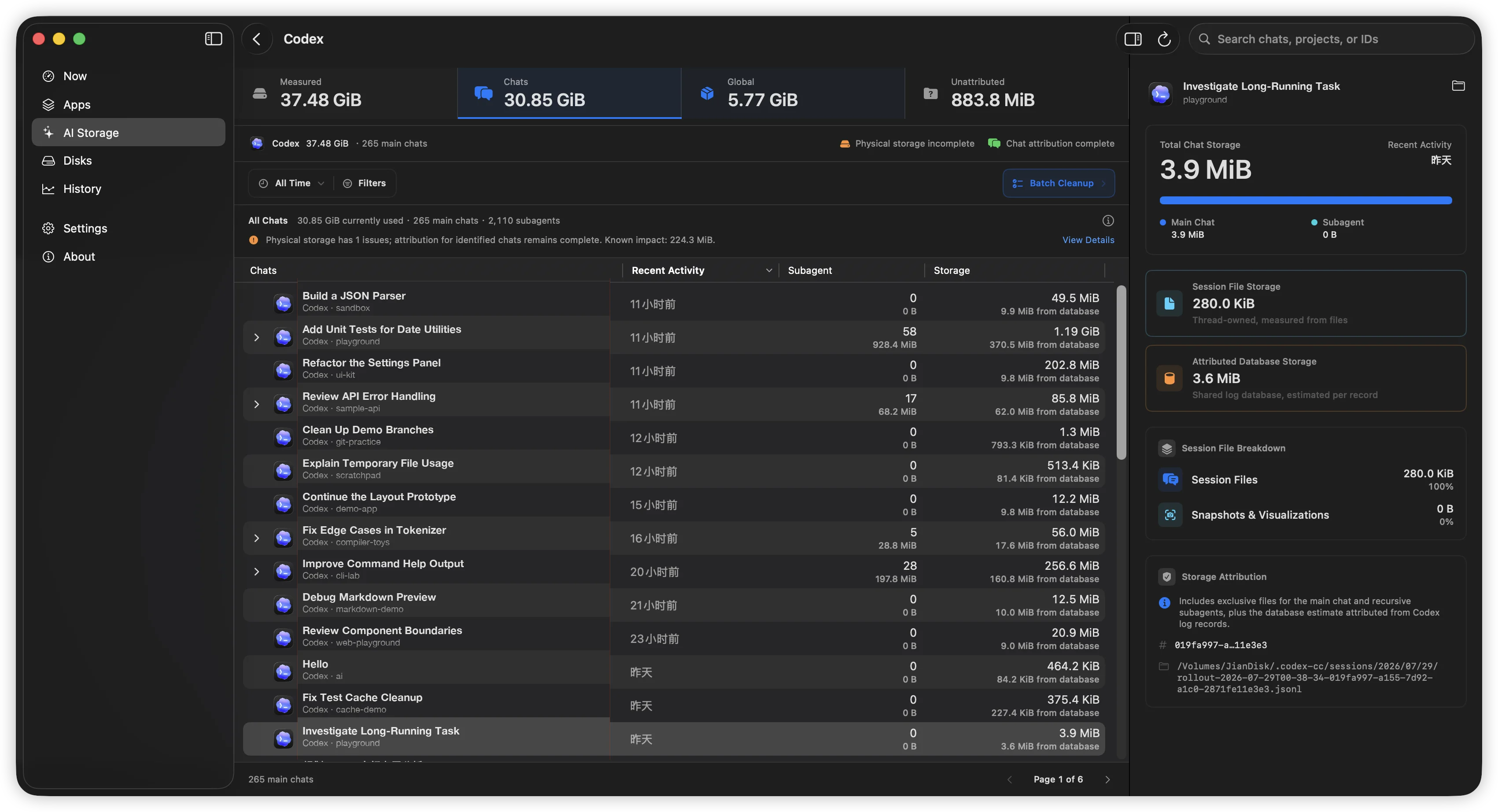
thread별 활동과 하위 에이전트를 나열하고 선택한 thread의 전체 저장 공간 구성을 오른쪽에 보여 주는 Codex AI Storage.
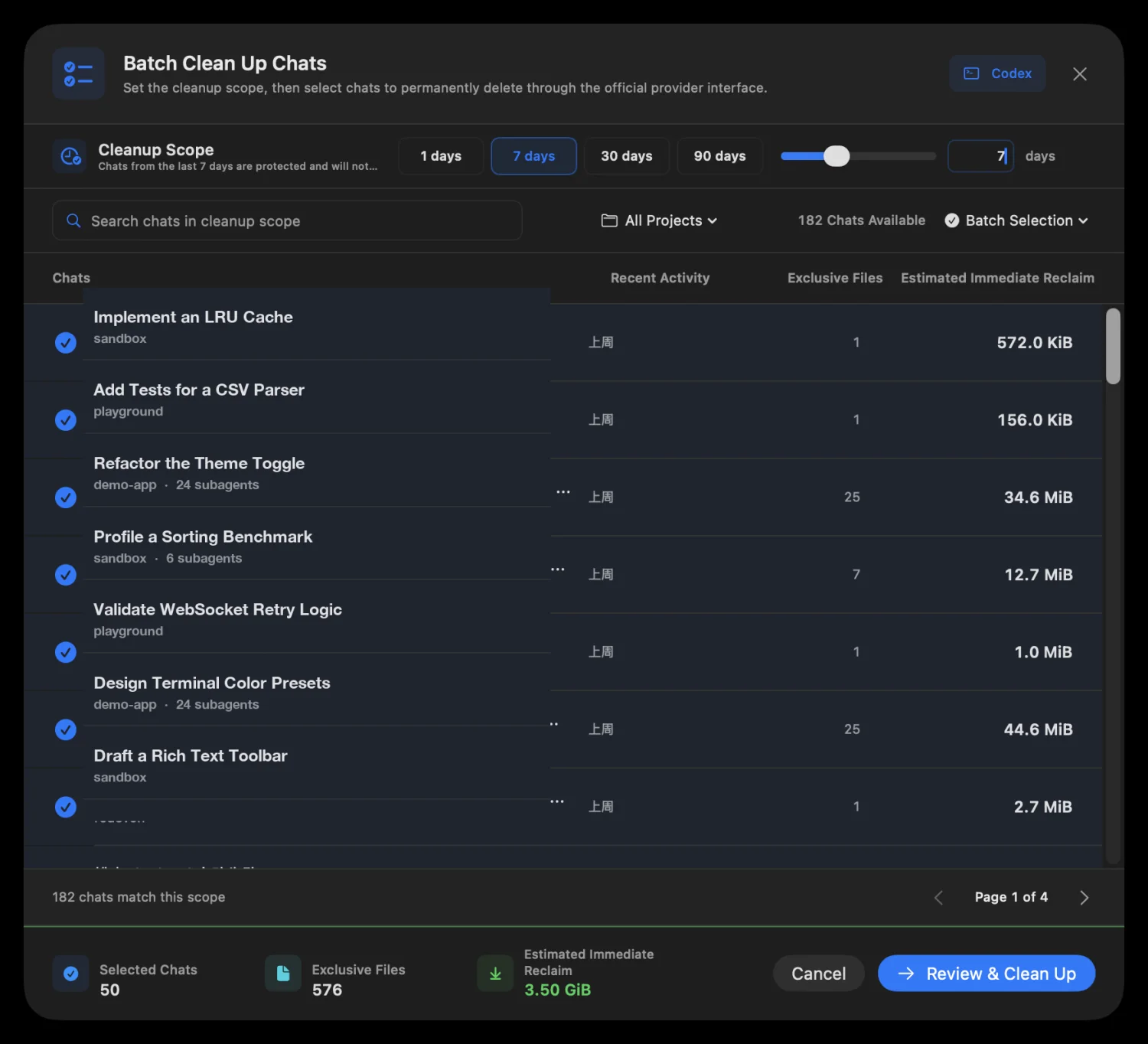
영구 삭제 전에 선택한 대화와 예상 즉시 확보 공간을 보여 주는 일괄 정리 검토.

분석은 자동으로 시작되지 않습니다. 활성 상태이거나 identity가 변경된 세션은 건너뛰며, 미지원 provider에서 데이터베이스 쓰기나 transcript 수동 삭제로 대체하지 않습니다. Claude Desktop과 Cowork는 Claude Desktop에서 삭제합니다.

App Activity

CPU, disk read/write, network download/upload — per process, sortable columns, adjustable widths. Four dimensions at once.

App Activity: 1-min, 15-min, and 1-hour line charts. Hover for exact values. Spot sustained patterns, not just momentary spikes.

File Activity

Open file locations, recently modified directories, and on-demand access tracing — start tracing any path to see who reads or writes it.

Open file locations, recently modified directories, and on-demand access tracing — start tracing any path to see who reads or writes it.
File Activity: Guided workflow into targeted per-file tracing

Disks & Volumes

Device throughput shown with familiar names — Macintosh HD, JianDisk — not cryptic identifiers. See which device is busy.

Temperature, lifetime reads/writes, wear level, spare capacity, power-on hours — only showing fields your hardware actually reports.

Device throughput shown with familiar names — Macintosh HD, JianDisk — not cryptic identifiers. See which device is busy.

또 하나의 시스템 모니터가 아닙니다

FindDiskKiller는 지속적인 디스크 활동 신호에서 출발해 원인이 되는 앱, 파일, 물리 장치까지 한 흐름으로 추적하는 데 집중합니다.

Conventional resource viewsFindDiskKiller
Metrics split across separate viewsApp-centric workspace: disk, CPU, network, files together
Easy to see one-second spikes5-second rate, cumulative total, peak, and sustained patterns
Low-level device identifiersFamiliar volume names and storage relationships first
Missing values mistaken for zeroUnavailable, partial coverage, and reason explicitly shown
File events become a firehose of logsGuided workflow into targeted per-file tracing

Permissions & Privacy

Start monitoring immediately. Grant additional access only when you need it.

1

Open and use

Basic CPU, disk, network, volume, and process data are available without admin privileges.

2

Approve when needed

파일 또는 폴더 추적을 시작할 때에만 백그라운드 구성 요소가 설치됩니다.

Monitoring and analysis happen on your Mac. No process names, file paths, disk serial numbers, or monitoring history are uploaded. No ads, telemetry, or third-party tracking SDKs.

Frequently Asked Questions

How is this different from Activity Monitor?

Activity Monitor shows per-process resource usage but does not combine disk I/O, file activity, and drive health evidence in one workspace. FindDiskKiller adds time-range charts, targeted file tracing, and SMART/NVMe health data — all without sending your data off-device.

Does it work on external drives?

Yes. Physical device throughput is shown for all mounted volumes. For SMART/NVMe health data, availability depends on your enclosure and connection type. Many USB enclosures do not pass through SMART attributes; the UI explicitly marks unavailable data.

What permissions does it need?

기본 모니터링은 관리자 권한 없이 사용할 수 있습니다. 파일 액세스 추적을 처음 사용할 때 백그라운드 구성 요소 설치를 안내합니다. 보호된 위치를 추적하려면 시스템 설정에서 전체 디스크 접근 권한이 필요할 수 있습니다. 추적의 시작과 종료는 언제든지 직접 제어할 수 있습니다.

Is my data uploaded anywhere?

No. All monitoring, analysis, and display happens on your Mac. No process names, file paths, disk serial numbers, or monitoring history are transmitted. The app contains no analytics, telemetry, or third-party tracking SDKs.

How do I completely remove it?

Quit the app, remove the background component in System Settings > General > Login Items & Extensions, then drag the app from Applications to Trash. No kernel extensions, launch daemons, or launch agents are installed. See the Uninstall page for step-by-step instructions.

Ready to find what's using your disk?

macOS용 다운로드
Version 1.3.1713.4 MBmacOS 14.0+